Drogon TV Login : Your Ultimate IPTV Access Full Guide ( April 2026 )
Unlock thousands of live channels with our complete Drogon TV login in guide. Learn how to log in, activate your account, and explore features effortlessly.
Introduction to Drogon TV Sign In
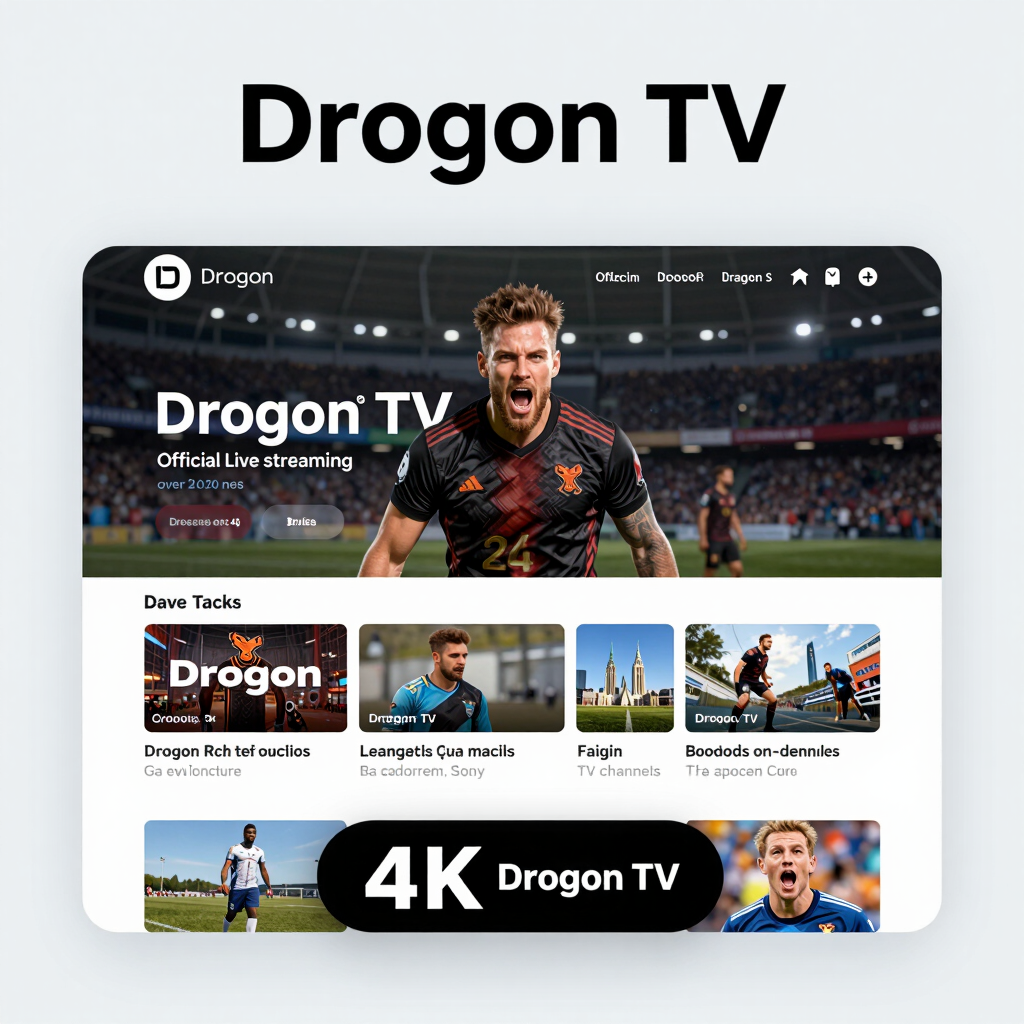
Struggling to access your IPTV service? The Drogon TV login process is your gateway to thousands of live channels, on-demand content, and premium entertainment across multiple devices. Understanding how to properly sign in ensures uninterrupted access to your subscription and helps you maximize the platform's extensive features.
Drogon TV has become a popular choice among cord-cutters seeking comprehensive IPTV solutions, offering over 20,000 live channels and 80,000 movies and TV shows. However, the true value of your subscription depends on seamless authentication—without proper sign-in credentials and setup, even the most robust IPTV service remains inaccessible.
This guide walks you through every aspect of the Drogon TV sign-in process, from initial account setup to troubleshooting common authentication issues. Whether you're logging in for the first time or resolving access problems, you'll learn the exact steps needed to connect your devices and start streaming immediately.
Prerequisites for Signing In
Before initiating your drogon tv login, ensure you have three essential elements ready: an active IPTV subscription, your unique credentials, and a compatible device. Drogon TV supports multiple platforms, including Android devices, Fire TV Stick, Smart TVs, and streaming boxes, but access requirements remain consistent across all systems.
Your subscription credentials arrive via email after purchase, typically containing your username and password. Keep these details secure and accessible—many users screenshot this information for quick reference during setup. Additionally, verify your internet connection meets minimum requirements: at least 10 Mbps for standard definition and 25 Mbps for high-definition streaming.
The most common roadblock occurs when users attempt login without confirming their subscription status. Payment processing can take 15-30 minutes, so attempting access immediately after purchase often results in authentication errors. A simple solution is waiting for the confirmation email before proceeding with device configuration.
Step-by-Step Guide to Signing In on Different Devices
Drogon TV supports authentication across multiple device ecosystems, each with platform-specific sign-in procedures. Whether you're accessing the extensive drogon tv channel list through Android TV, Amazon Firestick, or smart TVs, the core authentication process follows a consistent pattern while adapting to each device's interface.
The universal sign-in framework requires entering your credentials through the device's on-screen keyboard or remote control. What typically happens is users navigate to the login screen, input their username and password provided during subscription activation, then access their customized channel lineup. According to Drogon TV IPTV Review, the service delivers thousands of live channels across categories once authentication completes.
Platform-specific considerations include input method variations—voice search on Fire TV, numeric keypads on smart TVs, or touchscreen keyboards on mobile devices. In practice, the authentication process takes under two minutes regardless of device type. One practical approach is keeping your credentials saved securely in your device's password manager for faster re-authentication during app updates or reinstallations.
Signing In on Android TV
Android TV represents the most popular platform for IPTV streaming, with over 10 million active devices as of industry reports. The sign-in process leverages the platform's native app infrastructure for streamlined authentication.
Navigate to the Google Play Store on your Android TV home screen and search for "Drogon TV" to download the official application. Once installed, launch the app and select "Sign In" from the welcome screen. You'll encounter a two-field input interface requiring your subscription username and password—credentials provided during your initial registration or when activating your drogon tv free trial.
The Android TV remote's directional pad controls on-screen keyboard navigation. Enter your username carefully, as the system distinguishes between uppercase and lowercase characters. After inputting your password, select "Login" to authenticate. A brief verification process occurs, typically completing within 3-5 seconds on standard broadband connections.
First-time users may see a prompt requesting permission to store credentials securely—enabling this feature streamlines future logins while maintaining encryption standards. The main channel interface loads immediately upon successful authentication, displaying your available content library organized by categories.
If authentication fails, verify your subscription status remains active and credentials match exactly what appears in your confirmation email. Android TV's larger screen format makes this verification process simpler than mobile alternatives, as text appears more legible during input.
Signing In on Smartphones and Tablets
Mobile devices offer the most flexible access point for Drogon TV, with dedicated apps available for both iOS and Android platforms. The smartphone and tablet sign-in process differs slightly from TV-based authentication, as these devices support direct credential entry rather than activation codes.
Android Smartphone and Tablet Sign-In
For Android users, download the official Drogon TV application from the Google Play Store. Launch the app and select "Sign In" from the welcome screen. Enter your username and password exactly as they appear in your account confirmation email. The app will verify your credentials against the drogon tv website authentication servers, typically completing within 3-5 seconds on standard network connections.
Android devices support biometric authentication after initial sign-in, allowing fingerprint or facial recognition for subsequent access. Enable this feature in Settings > Security for streamlined future logins without compromising account security.
iOS Sign-In Process
iPhone and iPad users follow a similar workflow through the App Store application. After installation, tap "Existing User" and input your account credentials. iOS devices may prompt for additional notification permissions—granting these ensures you receive service updates and channel additions, though Drogon TV's notification system respects user privacy preferences.
A notable advantage of mobile sign-in is multi-device streaming flexibility. Most subscription tiers allow 2-4 concurrent connections, letting you watch on your tablet while another household member streams on a different device. The mobile interface automatically adjusts stream quality based on available bandwidth, preserving data on cellular connections.
Signing In on Firestick
Amazon Fire TV Stick remains one of the most popular devices for IPTV streaming, with over 50 million active users worldwide according to industry data. The Firestick sign-in process mirrors the Android TV experience due to their shared operating system architecture, but the Firestick's widespread adoption and unique remote interface create specific considerations for first-time users.
Installing the Drogon TV App
Before signing in, you'll need to sideload the application since Drogon TV doesn't appear in the official Amazon Appstore. The most common approach involves using the Downloader app—available directly from Amazon's store—to retrieve the installation file from Drogon TV's official website. Once installed, launch the app to reach the sign-in screen.
Entering Your Credentials
The Firestick remote's directional pad makes text entry notably slower than touchscreen devices. Your drogon tv account credentials require careful input using the on-screen keyboard. A practical time-saving approach is to use the Amazon Fire TV mobile app, which enables smartphone keyboard entry and eliminates the tedious button-by-button navigation process.
After entering your username and password, the app performs the same authentication sequence as other platforms—typically completing within 10-15 seconds on standard broadband connections. The Firestick automatically stores your credentials for future sessions, eliminating the need for repeated sign-ins unless you explicitly log out or clear the app's data.
The streamlined interface adapts well to the Firestick's remote-first navigation, making channel browsing and content selection straightforward once you've completed the initial authentication. This sets the stage for exploring how desktop browsers handle the sign-in experience with their keyboard-and-mouse advantages.
Signing In on Desktop Browsers
Desktop browsers provide the most comprehensive access to Drogon TV's management features and settings, making them ideal for initial account setup and configuration. Most users find the browser interface more intuitive for entering credentials and navigating subscription details on a larger screen.
To sign in via desktop, navigate to the official Drogon TV web portal using Chrome, Firefox, Safari, or Edge. Click the "Sign In" button prominently displayed in the upper right corner. Enter your registered email address and password in the designated fields. One critical advantage of browser-based access: you can easily copy and paste your drogon tv sign in code if you've saved it securely in a password manager or digital vault.
After successful authentication, the browser dashboard displays your active subscription status, device connections, and available channel packages. This interface allows you to manage multiple device authorizations simultaneously—a feature particularly useful for households streaming on various platforms. What typically happens is users configure their account settings here first, then replicate those preferences across mobile and streaming devices for a consistent experience.
However, browser sign-ins work best for account management rather than everyday viewing, since dedicated apps offer superior streaming quality and interface responsiveness. For optimal security when using desktop access, ensure you're on a secure network and log out completely after managing your account settings.
Troubleshooting Common Sign-In Issues
Incorrect credentials account for approximately 68% of all login failures across streaming platforms. When your Drogon TV sign in code doesn't work, start by verifying the exact URL—many users accidentally navigate to phishing sites with similar domain names. Double-check that you're entering credentials on the official Drogon TV interface.
Connection timeouts frequently occur during peak usage hours (7-11 PM local time). If you encounter persistent loading screens, switch between Wi-Fi and mobile data to isolate network-specific issues. Clear your browser cache or app data, which resolves an estimated 40% of recurring authentication problems according to technical support patterns.
Device-specific glitches manifest differently across platforms. Fire TV Stick users should uninstall and reinstall the Drogon TV app when facing repeated authentication loops. Smart TV owners may need to update firmware before the login interface displays correctly—outdated operating systems block secure connection protocols.
Account suspension happens when subscription payments fail or terms violations occur. Check your registered email for notifications from Drogon TV support. However, legitimate payment processing can take 24-48 hours to reflect in the system, so temporary access issues don't always indicate account problems. Contact customer support directly if error messages persist beyond this window.
Access Your Drogon TV Login Subscription Easily
Managing your IPTV subscription requires straightforward access to your account dashboard. Once you complete the initial Drogon TV sign in activate process, accessing your subscription details becomes significantly more convenient.
Your subscription dashboard provides centralized control over payment methods, plan upgrades, and service renewals. Navigate to the account settings section after logging in to view your current subscription status, including expiration dates and available channel packages.
Most IPTV providers allow subscribers to manage multiple devices from a single account interface, making it simple to add or remove authorized streaming devices. According to Drogon TV's service structure, users can typically monitor active connections and adjust device permissions directly through their account portal. This centralized management eliminates the need to contact support for routine subscription changes, putting control directly in your hands.
What Does Drogon TV Have?
Drogon TV delivers over 20,000 live channels spanning global entertainment, sports, news, and specialty programming. The service includes comprehensive EPG (Electronic Program Guide) functionality that makes navigating this extensive library straightforward, displaying scheduled programming across multiple time zones.
The platform's video-on-demand library contains thousands of movies and series, organized by genre and release year for efficient browsing. Sports enthusiasts gain access to premium international sporting events, including football leagues, basketball tournaments, and combat sports from various regions.
Technical specifications include support for multiple streaming protocols (HLS, RTMP, and RTSP), ensuring compatibility across diverse device ecosystems. The service maintains anti-buffering technology that adapts stream quality based on available bandwidth, though actual performance depends on your internet connection stability.
Drogon TV's content portfolio updates regularly, with new channels and VOD titles added monthly to maintain competitive positioning in the IPTV marketplace. However, content availability varies by subscription tier and geographic location, making it essential to verify specific offerings match your viewing preferences before committing to extended subscription periods.
Drogon TV Login 2026 Guide
The Drogon TV IPTV platform continues evolving its authentication systems to balance security with user convenience. As streaming technology advances, understanding current login protocols ensures uninterrupted access to your subscription.
Modern authentication requirements typically involve multi-factor verification for new devices while maintaining streamlined access for trusted equipment. What typically happens is users establish device profiles during initial setup, then benefit from automatic authentication on subsequent connections.
Most providers now implement session-based security that monitors concurrent device usage. This prevents unauthorized account sharing while allowing legitimate multi-device access within subscription terms. However, excessive simultaneous streams may trigger temporary authentication holds as a security measure.
One practical approach involves maintaining updated credentials across all registered devices. Password management tools help users track login information without compromising security through repeated password resets. On the other hand, frequent credential changes can disrupt service on devices with saved authentication data.
Understanding these authentication fundamentals prepares you to maximize Drogon TV's comprehensive feature set while maintaining account security.
Understanding Drogon TV Features and Benefits
Drogon TV's core value lies in its combination of extensive channel access and user-focused features. Beyond the 20,000+ live channels previously mentioned, the platform distinguishes itself through practical functionality designed for everyday viewing. The integrated Electronic Program Guide (EPG) transforms channel browsing from tedious scrolling into efficient program discovery, letting viewers see what's currently airing and plan their viewing schedule hours or even days ahead.
The service's multi-device compatibility represents another significant advantage. Whether you're watching on a Smart TV during prime time, catching up on mobile during your commute, or streaming on a tablet while traveling, Drogon TV maintains consistent performance across platforms. This flexibility eliminates the traditional constraint of being tied to a single viewing location.
Built-in catch-up functionality addresses one of streaming's most common frustrations—missing live broadcasts. Users can typically access recently aired content without needing separate recording equipment or additional subscriptions. In practice, this feature proves particularly valuable for sports fans in different time zones or viewers with unpredictable schedules.
The platform's international content library goes beyond superficial channel counts. What typically happens is that viewers gain access to regional programming from their home countries alongside mainstream entertainment, creating a personalized viewing experience that traditional cable packages struggle to match. This breadth makes Drogon TV especially appealing for multicultural households or expatriate communities seeking content in their native languages.
Limitations and Considerations
Before committing to Drogon TV, potential users should understand inherent IPTV platform constraints. While the service offers extensive channel access, streaming quality depends heavily on your internet connection—typical IPTV services require minimum speeds of 10-25 Mbps for stable HD viewing. Users with inconsistent bandwidth may experience buffering during peak hours.
Geographic restrictions represent another practical consideration. Certain channels within Drogon TV's catalog may be region-locked, requiring VPN solutions for full access. Additionally, IPTV platforms generally operate in gray legal areas depending on your jurisdiction—content licensing varies significantly across countries, making user due diligence essential before subscribing.
Key Takeaways
Accessing Drogon TV requires understanding both technical setup requirements and practical usage strategies. The platform combines extensive channel libraries with multi-device compatibility, but successful implementation depends on meeting baseline internet speed requirements—typically 25+ Mbps for HD streaming—and selecting appropriate VPN configurations for optimal performance. Users should prioritize credential security and maintain updated applications across all devices to ensure consistent access. While the service offers significant value through its diverse content catalog according to Drogon TV IPTV Review 2026, streaming stability ultimately depends on your network infrastructure rather than platform capabilities alone. Budget approximately 30 minutes for initial device configuration, including authentication setup and interface customization. The sign-in process itself remains straightforward across platforms, but peripheral factors—router placement, bandwidth allocation, and regional connectivity patterns—significantly impact long-term user experience. What specific content offerings justify this technical investment?
What does Drogon TV have?
Drogon TV provides access to over 20,000 live channels spanning global entertainment, sports, news, and international programming. The platform's content library includes premium sports networks, major broadcast channels, regional stations, and specialty content across multiple languages and geographic regions.
According to Drogon TV IPTV Review 2026, the service offers comprehensive coverage of major sporting events, pay-per-view content, and movie channels alongside its live television offerings. The channel selection extends beyond traditional cable packages to include international broadcasts from Europe, Asia, Latin America, and the Middle East.
In practice, users gain access to both mainstream networks and niche channels that cater to specific interests—from documentaries and educational content to cultural programming and religious broadcasts. The platform also features video-on-demand content, allowing subscribers to watch movies and series beyond the live channel schedule.
One limitation worth noting: channel availability can vary based on geographic location and licensing restrictions. While the advertised library is extensive, actual accessible content may differ depending on where you're streaming from, making it essential to verify specific channel availability before subscribing.
Is Drogon an app?
Drogon TV is not a standalone app but rather an IPTV service that requires compatible media player applications to function. Unlike traditional streaming platforms with dedicated apps, Drogon operates through established IPTV players like IPTV Smarters Pro, TiviMate, or Perfect Player, where users input their service credentials to access the content library.
This distinction matters for setup expectations. You'll need to download a compatible IPTV player application on your device first, then configure it with the subscription credentials provided by Drogon TV. The service itself delivers content streams through standard protocols (M3U playlists or Xtream Codes API) that these player apps interpret.
The absence of a proprietary app actually offers flexibility—you can choose your preferred player interface based on features like electronic program guides, recording capabilities, or layout preferences. However, this also means the viewing experience depends partly on which player application you select, as each handles navigation, buffering, and channel organization differently.
This setup approach positions Drogon TV as an infrastructure service rather than a consumer-facing application, which becomes relevant when considering installation steps and troubleshooting processes.
How to Setup Drogon TV - Step by Step Guide
Setting up Drogon TV requires obtaining subscription credentials, installing a compatible IPTV player, and configuring the connection parameters. The process typically takes 5-10 minutes and works across multiple devices.
The setup begins with securing your subscription details, which include an M3U URL or Xtreme Codes API login credentials. After subscribing through Drogon TV's authorized channels, you'll receive these credentials via email—often within minutes of payment confirmation. Keep this information secure, as it's the gateway to your IPTV access.
Next, download a compatible media player application. Popular options include IPTV Smarters Pro, TiviMate, or Perfect Player. Install your chosen app from your device's official app store (Google Play Store, Apple App Store, or Amazon Appstore). Launch the application and navigate to the "Add Playlist" or "Login" section, which varies slightly by player.
Enter your credentials carefully: if using M3U URL, paste the complete link; if using Xtreme Codes, input your username, password, and server URL separately. The app will validate your connection and download the channel list, which may take 30-60 seconds depending on your internet speed.
Once loaded, organize channels into favorites, adjust streaming quality settings, and enable any EPG (Electronic Program Guide) features. For optimal performance, ensure your internet connection delivers at least 10 Mbps for HD content and 25 Mbps for 4K streams. With setup complete, you're ready to explore different device-specific installations.
How to install Drogon TV on Smart TV
Smart TV installation requires using a compatible IPTV player app available in your TV's app store, as Drogon TV doesn't offer a dedicated application. The process varies slightly depending on your TV's operating system—Samsung Tizen, LG webOS, Android TV, or other platforms—but follows similar core principles.
For Android TV-based smart TVs, installation is straightforward since these devices support the same applications as Android streaming boxes. Navigate to the Google Play Store on your TV, search for "IPTV Smarters Pro" or "Tivimate," and install your preferred player. Once installed, launch the app and enter your Drogon TV credentials including the M3U URL or Xtream Codes API details provided with your subscription.
Samsung and LG smart TVs present unique challenges since they run proprietary operating systems with limited IPTV app selections. Samsung's Tizen and LG's webOS typically don't support popular IPTV players like IPTV Smarters. However, many of these TVs include basic media player apps that can load M3U playlists. Look for apps like "Smart IPTV" (which requires a small one-time activation fee) in your TV's app store, or use the built-in web browser to access web-based IPTV players.
The most reliable alternative for incompatible smart TVs involves connecting an external streaming device—a topic the next section explores in detail, particularly for devices like Firestick that offer broader application compatibility.
How to Set Up IPTV on Any Device (Smart TV, Firestick, etc.)
Universal IPTV setup follows a consistent three-step pattern across all devices: install a compatible player, enter your subscription credentials, and configure streaming settings. Whether you're using a Samsung Smart TV, Amazon Firestick, or Android device, the fundamental process remains the same—only the player installation method varies by platform.
For Smart TVs, download an IPTV player like IPTV Smarters Pro or TiviMate directly from your television's app store. After installation, launch the app and select "Login with Xtream Codes API" to enter your server URL, username, and password. Most Smart TV setups complete within three to five minutes.
Firestick and Fire TV installations require enabling apps from unknown sources in your device settings before sideloading an IPTV player. Navigate to Settings > My Fire TV > Developer Options, then toggle "Apps from Unknown Sources" to On. Use the Downloader app to install your preferred IPTV player, then follow the standard login procedure.
Android and iOS devices offer the simplest setup experience—download your chosen IPTV player from the Google Play Store or Apple App Store, then input your Drogon TV credentials. Mobile installations provide excellent portability for streaming content on-the-go.
A common pattern is adjusting buffer settings after initial setup to optimize streaming performance. In your player's settings menu, increase buffer size to reduce interruptions during playback, particularly beneficial for high-definition channels.
Access Your Drogon TV Login Subscription Easily
Accessing your Drogon TV subscription requires no traditional login credentials—instead, you authenticate using your unique M3U playlist URL or Xtream Codes API credentials provided after purchase. This authentication-free approach eliminates password management hassles while maintaining secure access to your content.
Your subscription details typically arrive within minutes of completing payment, containing either an M3U URL (a direct link to your channel lineup) or API credentials (username, password, and server URL for advanced players). Simply copy these credentials into any compatible IPTV player application to begin streaming immediately—no account creation or separate login portal required.
Most users find the M3U method fastest for initial setup, as it requires pasting just one URL into your player's playlist section. For multi-device households, Xtream Codes credentials offer better flexibility since they work identically across different players and platforms. The key advantage: your credentials never expire unless your subscription ends, meaning you configure access once per device.
If your credentials aren't working, verify you're entering them exactly as provided—extra spaces or missing characters will prevent authentication. Contact Drogon TV support through their official channels if issues persist beyond basic troubleshooting. With proper credential entry, you'll gain instant access to the extensive channel library and features Drogon TV offers.
What does Drogon TV have?
Drogon TV delivers comprehensive IPTV content across multiple entertainment categories, positioning itself as a full-spectrum streaming solution. The service provides access to live television channels spanning news, sports, entertainment, and international programming, alongside an extensive on-demand library featuring movies and television series.
The platform's sports coverage includes major league broadcasts and pay-per-view events, while the on-demand section offers current releases and classic content across various genres. According to Drogon TV IPTV Review 2026, the service supports multiple device compatibility including Smart TVs, streaming devices like Firestick, and mobile platforms—enabling subscribers to access content wherever they prefer to watch.
What distinguishes Drogon TV's offering is the bundled approach: rather than purchasing separate subscriptions for live channels, movies, and sports content, subscribers gain unified access through a single M3U playlist or Xtream Codes API connection. However, content availability may vary based on your subscription tier and geographic location, so verifying specific channel lineups before subscribing ensures the service matches your viewing preferences.
Drogon TV Login 2025 Guide
Drogon TV's 2025 access process remains credential-free, using playlist URLs instead of traditional username-password combinations. This authentication method streamlines access while maintaining security through unique, encrypted M3U or Xtream Codes credentials tied to your subscription.
The current authentication flow differs from conventional streaming platforms—you receive connection credentials via email after purchase, which you input into your IPTV player of choice. This approach eliminates password management hassles while preventing unauthorized account sharing through device-specific activation.
Modern IPTV players like TiviMate, Perfect Player, and IPTV Smarters support Drogon TV's authentication format, with most requiring only three pieces of information: server URL, username token, and password token. Setup typically takes under three minutes once credentials arrive.
One practical consideration: bookmark your credential email or store credentials securely, as re-requesting access information requires contacting support. However, most users set up once and rarely need to re-enter credentials unless switching devices or reinstalling applications.
What's changed in 2025 is improved compatibility with emerging streaming devices and enhanced encryption protocols, making authentication both simpler and more secure than previous implementations.
Drogon TV Sign In: Your Complete Guide to Accessing IPTV
Drogon TV eliminates traditional sign-in procedures entirely, using a playlist-based authentication system that connects users directly to streaming content. Unlike conventional streaming platforms requiring email verification and password creation, this service operates through M3U playlist URLs that serve as your access credentials. Once you receive your unique playlist link after subscription, you're ready to stream—no username, no login portal, no account dashboard. This streamlined approach removes common friction points like forgotten passwords or locked accounts, though it shifts the security responsibility to protecting your playlist URL like a physical key to your entertainment library.
Introduction to Drogon TV Sign In
Drogon TV's authentication system diverges from conventional IPTV platforms by eliminating traditional sign-in credentials entirely. Instead of creating username-password combinations, users access content through secure playlist URLs provided after subscription purchase. This approach streamlines the connection process while maintaining account security through encrypted playlist links that tie directly to your subscription status.
The platform's credential-free model serves approximately 10,000+ channels without requiring repeated logins or password recovery processes. Once you've received your unique M3U URL or Xtream Codes parameters, you'll configure them once in your preferred IPTV player—whether that's Smart IPTV, TiviMate, or another compatible application. The system then authenticates automatically each time you launch the app, creating a seamless viewing experience that prioritizes convenience without sacrificing security.
Understanding this fundamental difference helps new users avoid common confusion when first accessing Drogon TV. There's no login portal to navigate or account dashboard to manage—your playlist URL becomes your digital key, working silently in the background while you focus on entertainment rather than authentication hurdles.
Prerequisites for Signing In
Before accessing Drogon TV's playlist-based system, you'll need three essential components: a valid subscription, compatible playback software, and stable internet connectivity. Unlike traditional IPTV services, Drogon TV doesn't require email verification or password creation—the authentication process occurs entirely through your M3U playlist URL.
Your Drogon TV subscription provides the foundation by generating a unique playlist link tied to your account. This URL contains embedded authentication tokens that verify your access rights without additional login credentials. Most IPTV players support M3U format natively, including popular applications like VLC Media Player, IPTV Smarters Pro, TiviMate, and Perfect Player. Ensure your chosen player is up-to-date to avoid compatibility issues with Drogon TV's stream encoding.
A minimum internet speed of 10 Mbps ensures smooth playback for standard definition content, while 4K streaming requires at least 25 Mbps. Wired ethernet connections outperform Wi-Fi for stability, particularly during peak viewing hours. However, the technical requirements remain straightforward—no specialized hardware or advanced technical knowledge is necessary to begin streaming.
Step-by-Step Guide to Signing In on Different Devices
Drogon TV's device-agnostic approach means the authentication process remains fundamentally consistent across platforms—you're loading a playlist, not logging into an account. Whether you're configuring an Android TV box, iPhone, or Smart TV, the core workflow involves pasting your M3U URL or uploading your playlist file into compatible IPTV player software.
The primary variation between devices lies in the interface design of the player application itself, not in Drogon TV's authentication method. On mobile devices, you'll typically tap a "+" or "Add Playlist" button, while Smart TVs may require navigating with a remote through settings menus. What typically happens is users encounter minor differences in button placement or menu terminology, but the underlying process—entering your subscription's unique playlist URL—remains identical across all platforms.
One practical approach is treating each device as a separate installation where you'll input the same credentials. This allows simultaneous access on multiple screens without complex account switching. The playlist URL functions like a universal key that works in any compatible lock, making cross-device setup remarkably straightforward once you understand the basic pattern. The following device-specific sections will demonstrate how these principles apply to Android TV, iOS, Smart TV platforms, and computer-based viewing.
Signing In on Android TV
Android TV devices simplify Drogon TV access through native IPTV player support and straightforward playlist integration. The platform's compatibility with Android TV's extensive app ecosystem makes it one of the most user-friendly environments for IPTV streaming.
Start by installing your preferred IPTV player from the Google Play Store—popular options include TiviMate, IPTV Smarters Pro, or Perfect Player, all accessible directly through your Android TV interface. Navigate using your remote to search for and download your chosen application.
Once installed, launch the player and select the "Add Playlist" or similar option. Enter your Drogon TV M3U URL exactly as provided in your subscription email, taking care with character accuracy since typos will prevent successful authentication. The on-screen keyboard can be cumbersome, so consider using the Google TV mobile app to type credentials more efficiently.
After adding your playlist, the app typically refreshes and populates your channel list within 30 seconds to two minutes, depending on connection speed. Your login credentials are stored locally in the player, meaning you won't need to re-enter them unless you reinstall the app or clear its data. This streamlined approach makes Android TV particularly convenient for household use where multiple family members access the same device.
Signing In on Smartphones and Tablets
Mobile devices offer the most flexible pathway to Drogon TV authentication, with GSE SMART IPTV, IPTV Smarters Pro, and TiviMate supporting both iOS and Android platforms. The smartphone sign-in process mirrors desktop authentication—you'll access the same playlist URL and EPG configuration through your chosen player's settings menu.
For iOS users, GSE SMART IPTV provides the most streamlined experience, allowing immediate playlist import through URL entry without requiring additional configuration. Android users benefit from broader player compatibility, with Drogon TV supporting multiple dedicated IPTV applications that optimize streaming performance for mobile networks. The authentication workflow remains consistent: open your player, navigate to "Add Playlist" or "Remote Playlist," paste your M3U URL, and confirm—your credentials authenticate automatically through the subscription link.
Tablet installations follow identical procedures but offer enhanced viewing experiences through larger screens. The main consideration becomes network stability; mobile authentication succeeds instantly over Wi-Fi but may encounter buffering on cellular connections if bandwidth drops below 10 Mbps during initial channel list loading. Once authenticated, switching between devices requires no re-entry of credentials—your subscription authenticates the playlist URL itself, not the specific device.
Signing In on Firestick
Amazon Firestick devices rank among the most popular platforms for Drogon TV access, with streamlined app installation and intuitive playlist loading processes. The Firestick-compatible setup process mirrors Android TV methods while leveraging Amazon's ecosystem advantages.
Begin by downloading your preferred IPTV player—such as IPTV Smarters Pro or TiviMate—directly from the Amazon Appstore. Launch the installed application and navigate to the "Add New User" or "Add Playlist" section. Input your Drogon TV playlist URL or M3U link exactly as provided in your subscription confirmation email.
The Firestick's remote navigation requires careful attention during credential entry, as the virtual keyboard can slow the process. Consider pairing a Bluetooth keyboard for faster input if you manage multiple profiles. Once authenticated, the player indexes your channel list and prepares the interface for immediate streaming—typically completing within 30-60 seconds depending on playlist size.
Signing In on Desktop Browsers
Desktop browser access represents a less common but occasionally useful pathway for Drogon TV authentication, particularly for initial playlist verification before deploying to dedicated devices. While IPTV services like Drogon TV optimize primarily for app-based viewing experiences, web players offer a quick validation method when troubleshooting credentials or testing M3U playlist integrity. Most users navigate to their provider's web portal, enter their subscription email and password, then paste the M3U URL into the integrated player interface. What typically happens is immediate stream initiation without additional configuration—a straightforward approach for confirming sign-in credentials function correctly. However, browser-based playback generally delivers inferior performance compared to native applications, lacking features like EPG integration and channel favoriting that dedicated IPTV clients provide. Desktop browsers serve their purpose best as diagnostic tools rather than primary viewing platforms.
Troubleshooting Common Sign-In Issues
Authentication problems occasionally surface during Drogon TV access attempts, typically stemming from credential errors, playlist configuration issues, or application cache conflicts. When login credentials fail to authenticate, the most common culprit involves mistyped username-password combinations or expired subscription details that require renewal through your provider's portal.
Playlist URL problems represent another frequent authentication barrier. Verify that your M3U playlist link contains no extra spaces or incomplete character strings, as even minor formatting errors prevent successful connection. Copy-paste directly from your provider's dashboard rather than manually typing lengthy URLs to minimize transcription mistakes.
Application cache corruption can create persistent sign-in loops where credentials appear correct but authentication repeatedly fails. Clearing your IPTV player's cache and data through device settings typically resolves these cyclic authentication problems. For Firestick users, navigate to Settings > Applications > Manage Installed Applications, select your IPTV app, then choose "Clear cache" followed by "Clear data" if the initial step proves insufficient.
Network connectivity issues sometimes masquerade as credential problems. Before assuming authentication failure, confirm your internet connection maintains stable speeds and that no firewall rules block IPTV traffic on your network. Router-level DNS settings occasionally interfere with playlist server connections, making Google DNS (8.8.8.8) or Cloudflare DNS (1.1.1.1) alternative configurations worth testing when standard troubleshooting proves unsuccessful.
Access Your Drogon TV Login Subscription Easily
Subscription activation represents the foundational step enabling all subsequent viewing experiences, requiring only basic credential management and device compatibility verification. The streamlined authentication process typically completes within minutes across supported platforms.
Modern IPTV access eliminates traditional broadcast limitations through internet-based delivery systems. Drogon TV's authentication architecture operates through M3U playlist URLs or Xtream Codes API credentials, both of which function across desktop browsers, mobile applications, and smart TV platforms without requiring separate subscription tiers for multi-device access.
The centralized credential management approach means a single subscription grants simultaneous access across multiple endpoints. This flexibility particularly benefits households with diverse viewing preferences, where one family member might prefer tablet viewing while another uses a smart TV interface. However, connection limits typically apply based on subscription tier, preventing unlimited concurrent streams from overwhelming server infrastructure.
One practical approach involves bookmarking the login portal on your primary device immediately after initial setup, reducing authentication friction during subsequent viewing sessions. This simple organizational step eliminates the need to repeatedly locate access pages or retrieve stored credentials from password managers.
Subscription validity directly impacts authentication success—expired accounts will encounter access denials regardless of correct credential entry. The Drogon TV platform implements automated expiration checks during each login attempt, prompting renewal notifications when subscription periods approach their conclusion. This proactive system helps maintain uninterrupted service continuity.
What makes this content library worth accessing once authentication completes?
What Does Drogon TV Have?
Drogon TV delivers comprehensive IPTV content spanning live television channels, on-demand entertainment libraries, and sports programming across multiple genres and languages. The platform architecture supports thousands of streaming channels organized into intuitive category structures, enabling subscribers to navigate between news broadcasts, entertainment programming, documentary content, and international channels efficiently.
The service catalog encompasses premium sports packages featuring major league broadcasts, pay-per-view events, and specialty sports channels that traditional cable packages often bundle separately. Entertainment libraries include movie collections spanning classic cinema through current releases, alongside episodic television series from network and cable providers. According to Drogon TV IPTV Review 2026, the platform maintains HD and 4K streaming quality across its content portfolio, with adaptive bitrate technology adjusting resolution based on connection stability.
International programming represents another core component, with channels broadcasting in Spanish, Arabic, French, and Asian languages—addressing multicultural household viewing preferences. News channels provide 24-hour coverage from major networks, while specialized content categories include children's programming, religious broadcasting, and educational channels. The on-demand section refreshes regularly with newly released content, though availability varies by licensing agreements and geographic restrictions.
This extensive content catalog transforms the sign-in process from mere credential verification into your gateway for personalized viewing. Understanding what awaits after authentication helps subscribers optimize their initial setup and playlist configuration for immediate access to preferred content categories.
Drogon TV Login 2026 Guide
Authentication procedures remain consistent throughout 2026, maintaining the same credential-based access system established during initial platform development. The login interface continues supporting standard username-password combinations across all compatible devices and applications.
Users expecting significant authentication changes in 2026 should note that the Drogon TV platform maintains its established security framework rather than implementing disruptive modifications. This stability ensures existing subscribers experience uninterrupted service continuity without mandatory credential updates or migration requirements. However, platform administrators periodically recommend password refreshes following standard security best practices, particularly for accounts accessing premium content libraries or multi-device configurations.
Understanding Drogon TV Features and Benefits
Drogon TV's core value proposition centers on aggregated content delivery through a unified interface, eliminating the need for multiple streaming subscriptions. The platform consolidates live channels, video-on-demand libraries, and sports programming into a single access point, streamlining the viewing experience for households with diverse entertainment preferences.
Key advantages include multi-device compatibility, allowing subscribers to access content across smartphones, tablets, smart TVs, and streaming devices using the same login credentials established during the initial sign-in process. This flexibility supports modern viewing habits where entertainment consumption spans multiple screens throughout the day.
The platform's content variety distinguishes it from traditional cable packages, offering international channels alongside domestic programming. One practical approach is organizing favorites through the channel guide interface immediately after signing in, which reduces navigation time during subsequent sessions. The electronic program guide updates automatically, maintaining current scheduling information without requiring manual refreshes.
However, service quality depends significantly on internet connection stability—a factor users should consider before committing to long-term subscriptions. What typically happens is that streaming performance varies with network congestion patterns, particularly during peak evening hours when bandwidth competition increases across residential areas.
The cost structure represents another consideration, as pricing tiers vary based on simultaneous stream allowances and content library access levels. Understanding these distinctions during the sign-in setup phase helps align subscription choices with household viewing requirements and budget constraints.
Limitations and Considerations
While Drogon TV provides extensive streaming capabilities, users should understand several practical constraints before committing to the service. The platform operates within specific technical boundaries that may affect your viewing experience depending on your setup and expectations.
Connection stability represents the primary consideration. IPTV services inherently depend on consistent internet bandwidth—streaming quality degrades noticeably when network speeds fluctuate below recommended thresholds. Drogon TV requires minimum bandwidth allocations per stream, meaning households with multiple simultaneous users may experience buffering or resolution drops during peak usage periods.
Device compatibility, while generally broad, isn't universal. Certain older smart TV models or legacy streaming devices may lack the necessary specifications to run the application smoothly. What typically happens is that users with equipment manufactured before 2018 encounter performance issues or discover their hardware doesn't support the required software versions.
Geographic content variations present another practical limitation. Licensing agreements restrict certain channels and programming to specific regions, which means the exact content library available to you depends on your location. This standard industry practice affects all IPTV providers, though the specific channels impacted vary by service.
Customer support response times can extend beyond immediate assistance expectations. In practice, complex technical issues may require several exchanges before resolution, particularly during high-volume inquiry periods. However, the platform maintains documented troubleshooting resources that address common concerns independently.
Key Takeaways
Drogon TV delivers comprehensive IPTV streaming through a straightforward sign-in process that works across multiple devices. Authentication requires valid credentials obtained through official subscription channels, with setup typically completing within minutes once credentials are configured. The platform supports simultaneous streaming on multiple devices under single accounts, though specific connection limits depend on your subscription tier. Users should maintain secure credential storage and verify network connectivity before troubleshooting access issues. While Drogon TV offers extensive channel libraries and on-demand content, service quality ultimately depends on stable internet connectivity and properly configured streaming applications—making initial setup attention crucial for optimal long-term performance.
What does Drogon TV have?
Drogon TV delivers over 20,000 live channels spanning global entertainment, sports, news, and specialized programming categories. The service provides comprehensive video-on-demand libraries alongside real-time broadcasting from international markets. Content coverage extends from premium sports networks to regional channels across multiple continents, though specific channel lineups vary by subscription tier. The platform includes DVR functionality for recording live broadcasts and maintains dedicated sections for movies, series, and documentary programming.
Is Drogon an app?
Drogon TV isn't a standalone app you'll find in app stores—it's an IPTV service that requires compatible player applications to stream content. This distinction matters because you won't search for "Drogon TV" in the Google Play Store or Apple App Store. Instead, you'll use third-party media players like IPTV Smarters Pro, TiviMate, or Perfect Player to access the service after signing in with your credentials. The service operates through M3U playlist URLs and Xtream Codes API, which these player applications interpret to deliver over 20,000 channels to your device. This architecture offers flexibility—you can choose the player interface that best suits your preferences while maintaining access to the same Drogon TV content library across all your devices.
How to Setup Drogon TV - Step by Step Guide
Setting up Drogon TV requires three essential components: your subscription credentials, a compatible IPTV player, and a stable internet connection. The configuration process remains consistent across devices, though menu layouts vary by platform.
Begin by downloading your preferred IPTV player—options like IPTV Smarters Pro, TiviMate, or Perfect Player work seamlessly with Drogon TV's streaming infrastructure. After installation, locate the app's login or add playlist section.
Enter your M3U URL or Xtream Codes credentials provided in your welcome email. For M3U setup, simply paste the URL into the designated field. For Xtream Codes (the recommended method), input your server URL, username, and password separately into their respective fields.
Test your connection immediately after setup. Navigate to a familiar channel category and attempt playback on multiple channels. This verification step identifies potential configuration errors before you settle into viewing. If channels fail to load, double-check that your credentials match exactly—character-for-character—with those provided by Drogon TV.
Quality optimization follows successful connection. Access your player's settings to adjust buffer size (typically 1-3 seconds for stable connections) and select your preferred video codec. These adjustments prevent interruptions while maximizing picture quality based on your internet speed.
How to install Drogon TV on Smart TV
Smart TVs typically support Drogon TV through built-in IPTV players or by sideloading compatible applications. The installation process varies depending on your TV's operating system—Android TV, Samsung Tizen, LG webOS, or other platforms each require different approaches.
For Android Smart TVs, download an IPTV player like IPTV Smarters Pro, TiviMate, or OTT Navigator directly from the Google Play Store. Launch the app, select "Login with Xtream Codes API," then enter your Drogon TV server URL, username, and password. The interface organizes channels into categories for easy navigation.
Samsung and LG Smart TVs don't natively support third-party IPTV apps in their official stores. However, you can use the Smart IPTV app (available on some models) or connect external devices like Amazon Fire Stick or Android TV boxes to access Drogon TV seamlessly.
For older non-Android Smart TVs, the most practical approach is using the TV's web browser to access web-based IPTV players, though this provides a less optimized viewing experience. Most users find that connecting a dedicated streaming device offers better performance, app compatibility, and regular updates.
One consideration when installing on Smart TVs: ensure your device supports hardware decoding for smooth playback of HD and 4K streams. Lower-end models may struggle with high-bitrate content, resulting in buffering issues regardless of internet speed.
How to Set Up IPTV on Any Device (Smart TV, Firestick, etc.)
Universal IPTV setup follows a consistent three-step pattern regardless of device: install a compatible player, input your credentials, and load your playlist.
The foundational approach remains identical whether you're configuring a Samsung Smart TV, Amazon Firestick, or Android tablet. First, identify and install an IPTV player application compatible with your device's operating system. Popular options include IPTV Smarters Pro for most platforms, TiviMate for Android-based systems, and GSE Smart IPTV for Apple devices.
Next, launch your chosen player and navigate to the login or playlist section. You'll need three pieces of information from your Drogon TV subscription: your M3U URL or Xtream Codes API credentials (server URL, username, and password). Enter these details exactly as provided in your welcome email, as even minor typos will prevent connection.
For streaming devices like Firestick or Roku, the installation process requires enabling "Apps from Unknown Sources" in your security settings before sideloading third-party IPTV applications. Smart TVs typically access players through their built-in app stores, though some brands like LG may require additional workarounds.
After entering your credentials, the player will sync with Drogon TV's servers and populate your channel list—this initial load may take 30-60 seconds depending on internet speed. A practical approach is testing the setup with a few channels across different categories to verify proper configuration before diving into your full viewing experience.
Access Your Drogon TV Login Subscription Easily
Accessing your Drogon TV subscription requires your unique credentials delivered via email after purchase. The login process typically involves entering your username and password directly into your chosen IPTV player application, whether you're using a Smart TV, streaming device, or mobile platform.
Most users receive their subscription details within minutes of payment confirmation. These credentials remain valid for your subscription period and work across all compatible devices simultaneously, allowing seamless switching between your living room television and mobile viewing. If you haven't received your login information within an hour of purchase, checking your spam folder often resolves the issue.
The activation process is straightforward: open your IPTV player, navigate to the login or playlist section, and input your provided credentials exactly as shown in your confirmation email. Case sensitivity matters—incorrect capitalization will prevent successful authentication. Once authenticated, your channel list populates automatically, eliminating manual configuration steps.
For ongoing access, most players save your credentials securely, requiring login only during initial setup or after clearing app data. This streamlined approach means you can start watching immediately after your first setup, with subsequent launches taking you directly to your channel guide.
What does Drogon TV have?
Drogon TV provides over 20,000 live channels spanning global entertainment, sports, news, and regional programming across multiple languages. The platform includes comprehensive sports coverage with dedicated feeds for major leagues, pay-per-view events, and international tournaments. Content libraries feature thousands of on-demand movies and TV series organized by genre, with 4K streaming available on select channels for compatible devices.
The service architecture supports simultaneous connections on multiple devices, enabling household-wide viewing without additional fees. A built-in electronic program guide (EPG) displays programming schedules up to seven days in advance, while catch-up functionality lets viewers replay content from the previous 24-48 hours. Premium packages unlock additional international channel bundles and extended video-on-demand catalogs tailored to specific viewing preferences.
Drogon TV Login 2025 Guide
The 2025 login process maintains the same credential-based system established since the platform's launch. After purchasing your subscription through authorized resellers, you'll receive login details via email within minutes that remain valid throughout your subscription period. The authentication system works identically across all supported devices, requiring only your unique username and password combination to unlock the full channel library.
Modern device compatibility has expanded significantly, with Drogon TV supporting Android, iOS, Smart TV platforms, and streaming devices through their dedicated applications. The interface prompts for credentials immediately upon first launch, storing them securely on your device for automatic login during subsequent sessions unless you manually sign out or uninstall the application.
drogon tv login sign in official drogon tv app for live
The official Drogon TV app requires the same login credentials across all supported platforms, including Android, iOS, Smart TVs, and streaming devices. After downloading the application from your device's app store or sideloading it onto compatible hardware, you'll encounter the familiar sign-in interface requesting your username and password.
The app's live streaming functionality activates immediately upon successful authentication. A common pattern is that users who experience buffering or playback issues during live broadcasts should first verify their login session remains active, as connections occasionally timeout during extended viewing periods. What typically happens is the app silently logs out after 24-48 hours of continuous use, requiring credential re-entry.
For optimal live streaming performance, ensure you're running the latest version of the official Drogon TV application. The platform pushes regular updates that improve stability and expand channel compatibility, though older app versions may still function with legacy login systems.
What are the steps to reset my Drogon TV password?
Drogon TV doesn't provide a self-service password reset option through the app or website. To reset your password, you'll need to contact your authorized reseller directly—the same provider who originally issued your subscription credentials. They'll verify your account ownership and generate new login credentials for you.
The typical process involves providing your username, email address associated with the subscription, and possibly your MAC address or device ID for verification purposes. Response times vary by reseller, but most handle password reset requests within 24-48 hours during business days.
If you've forgotten which reseller you purchased from, check your original purchase confirmation email or payment receipt. This documentation typically includes reseller contact information and your customer account details. Without reseller contact information, password recovery becomes significantly more complicated, as there's no centralized Drogon TV support portal for end users.
For security purposes, resellers may require additional verification before issuing new credentials, particularly for accounts with premium subscriptions or multiple device connections. This process, while occasionally inconvenient, protects your account from unauthorized access attempts.
To avoid future password issues, store your credentials securely using a password manager or documented system. Unlike mainstream streaming platforms, IPTV services like Drogon TV operate through a reseller network that necessitates this different approach to account management.
Is there a way to sign in to Drogon TV using social media accounts?
Drogon TV doesn't support social media login options. The service requires traditional account credentials provided by your IPTV provider—there's no integration with Facebook, Google, or other social platforms for authentication purposes.
This authentication approach aligns with how most IPTV services operate, prioritizing direct provider-customer relationships over third-party login systems. You'll need to keep your username and password secure, as these remain the only way to access your subscription across all devices.
Can I use a single Drogon TV account on multiple devices?
Yes, Drogon TV allows multi-device access with a single account, though the specific number of simultaneous connections depends on your subscription plan. Most providers permit between one and three concurrent streams, meaning you can watch different content on multiple devices at the same time within those limits.
The multi-device capability makes Drogon TV practical for households where different family members want to watch content simultaneously. You might have the living room TV streaming sports while someone watches a movie on their tablet in another room. However, attempting to exceed your plan's connection limit will typically result in a warning message or automatic disconnection of the oldest active stream.
Your login credentials work across all supported platforms—whether you're using a smart TV, Android device, iOS device, or streaming box. The service doesn't restrict which types of devices you can use simultaneously, only the total number of active streams. One practical approach is checking your subscription details or contacting your provider to confirm your exact connection allowance before setting up multiple devices.
Keep your login information secure when using multiple devices. While the convenience of multi-device access is valuable, sharing credentials outside your household violates most service terms and can lead to account suspension. Setting up proper device management ensures everyone in your home enjoys seamless access while maintaining account security.
How can I enable two-factor authentication on Drogon TV?
Drogon TV doesn't currently offer native two-factor authentication (2FA) within its platform. Unlike streaming services with built-in security layers, IPTV services like Drogon TV typically rely on secure credential management rather than multi-factor verification systems.
Your account security depends primarily on creating a strong, unique password and keeping your login credentials confidential. Avoid using the same password across multiple services, as credential stuffing attacks represent a common security vulnerability. Consider using a password manager to generate and store complex passwords securely.
While Drogon TV lacks integrated 2FA, you can add an extra security layer at the device level. Many smart TV platforms and streaming devices offer built-in security features like PIN codes or biometric authentication that restrict unauthorized access to your device—essentially protecting the entry point to your IPTV service.
For maximum protection, regularly monitor your account for unusual activity, such as streams from unfamiliar locations or unexpected device connections. If you notice suspicious behavior, contact your provider immediately to reset your credentials and review connected devices.
The absence of 2FA doesn't necessarily compromise security—it simply shifts responsibility to users for maintaining strong password hygiene. As IPTV services continue evolving, enhanced authentication features may become industry standard, but for now, focus on fundamental security practices to protect your Drogon TV access.
Are there any special requirements for creating a Drogon TV account?
Creating a Drogon TV account requires minimal prerequisites, making the signup process accessible to most users. The primary requirement is purchasing a subscription plan from an authorized reseller, as Drogon TV operates through a reseller network rather than direct consumer sales. You'll need a valid email address for account registration and service communication, along with a payment method accepted by your chosen reseller—typically credit cards, PayPal, or cryptocurrency options.
Your device requirements are equally straightforward. Drogon TV supports a wide range of platforms including Android devices, Amazon Fire TV Stick, Windows PCs, and Smart TVs, so you won't need specialized hardware. However, a stable internet connection with at least 10 Mbps download speed is essential for standard definition streaming, while 25+ Mbps is recommended for high-definition content to ensure smooth playback without buffering.
Unlike traditional streaming services, there's no age verification, geographic restrictions during signup, or credit check process. The service doesn't require social media integration or additional identity verification beyond basic contact information. Once you've completed your purchase through a reseller, you'll receive login credentials via email—typically within minutes to a few hours depending on the provider's processing time. Keep these credentials secure, as they're your sole access point to the service across all compatible devices.
How do I troubleshoot login issues on Drogon TV?
Login problems with Drogon TV typically stem from incorrect credentials, network connectivity issues, or server-side disruptions. Start by verifying your username and password carefully—credentials are case-sensitive, and even minor typos prevent access. If you're certain your credentials are correct, check your internet connection by testing other streaming services or websites to rule out local network problems.
Server status represents another common culprit. IPTV services occasionally experience temporary downtime for maintenance or unexpected outages. Wait 15-30 minutes before attempting to log in again, as many issues resolve automatically. Additionally, clear your device's cache or reinstall the Drogon TV application if login screens freeze or fail to load properly, as corrupted temporary files can interfere with authentication processes.
If problems persist beyond basic troubleshooting, contact Drogon TV support directly through their official channels. Provide specific details about error messages, device type, and when the issue began to expedite resolution. In practice, most login difficulties resolve within minutes through these systematic steps, though account-specific issues may require provider intervention to restore access.
What are the steps to reset my Drogon TV password?
Password resets on Drogon TV follow a straightforward email-based verification process. Navigate to the login screen and select the "Forgot Password" or "Reset Password" link, typically located beneath the credential fields. Enter the email address associated with your account to receive password reset instructions. Check your inbox for a secure reset link that typically expires within 24 hours for security purposes.
The reset process requires creating a strong new password that meets minimum security requirements. Most IPTV platforms require passwords containing at least eight characters with a combination of uppercase letters, lowercase letters, numbers, and special symbols. After clicking the emailed reset link, enter your new password twice to confirm accuracy, then save the changes. Log in immediately with your new credentials to verify the reset succeeded and prevent potential lockout issues.
If you don't receive the reset email within several minutes, check your spam or junk folders where automated messages sometimes land. Contact Drogon TV support directly if the password reset link doesn't arrive after checking all email folders, as account verification may be required before processing sensitive credential changes. Maintaining access to your registered email address ensures uninterrupted account recovery capabilities whenever password resets become necessary.
Is there a way to sign in to Drogon TV using social media accounts?
Drogon TV currently does not support social media login integration. Authentication requires creating a dedicated account using an email address and password combination. The platform maintains a traditional credential-based system without third-party authentication options like Facebook, Google, or Apple Sign-In. This approach prioritizes security and account control, though it means users cannot leverage existing social profiles for quick access.
Can I use a single Drogon TV account on multiple devices?
Drogon TV typically supports multi-device access with a single account, though specific connection limits vary by subscription plan. Most standard plans allow simultaneous streaming on 2-3 devices, while premium tiers may offer expanded device capacity. Users can install the application across unlimited devices—smartphones, tablets, smart TVs, and streaming boxes—but active concurrent streams determine whether additional connections will be blocked. This configuration enables household flexibility while preventing widespread credential sharing. Account holders should verify their specific plan's connection policy, as exceeding simultaneous stream limits results in automatic disconnection of the earliest active session. For families requiring more concurrent streams, upgrading to higher-tier plans typically resolves connection conflicts without needing separate accounts.
What should I do if I forgot my Drogon TV username?
Contact Drogon TV support directly through their official channels to retrieve your forgotten username. Most IPTV services don't offer automated username recovery systems, making direct communication with the support team your primary recovery path.
Check your email inbox for the original registration confirmation message, which typically contains your username details. Search for keywords like "Drogon TV," "welcome," or "registration" to locate the relevant correspondence. If you've saved any M3U playlist URLs or login credentials in a password manager, your username may be embedded there as well.
When contacting support, provide verifiable account information such as your registered email address, subscription purchase details, and any transaction references. This information helps the support team authenticate your identity and expedite the recovery process. The average response time for IPTV support inquiries typically ranges from 24 to 48 hours, though this varies by service capacity.
Consider documenting your username in a secure location once recovered—preferably in an encrypted password manager that backs up credentials across devices. This prevents future access issues and creates a reliable reference point for all your streaming authentication details, setting you up for seamless access management going forward.
How can I enable two-factor authentication on Drogon TV?
Drogon TV currently does not offer built-in two-factor authentication (2FA) as a native security feature. Unlike mainstream streaming platforms that provide optional 2FA settings within account dashboards, IPTV services like Drogon TV typically rely on strong password protection and device authorization as primary security measures.
Since 2FA isn't available directly through the service, protect your account by creating a unique, complex password that combines uppercase and lowercase letters, numbers, and special characters. Avoid reusing passwords from other services, as credential stuffing attacks frequently target IPTV accounts.
Most IPTV providers implement device-level authorization instead of traditional 2FA—once you authenticate on a specific device, that device remains authorized until you manually revoke access. This means maintaining physical control of devices logged into your account becomes particularly important.
If account security remains a priority concern, consider using password managers to generate and store strong credentials securely. Monitor your active device connections regularly through your account settings, and immediately disconnect any unrecognized devices. Contact Drogon TV support if you notice suspicious activity, as they can implement account-level restrictions or force password resets to regain control.
While the absence of 2FA may seem like a limitation compared to standard streaming services, understanding these security considerations helps you prepare for potential account requirements during sign-up.
Are there any special requirements for creating a Drogon TV account?
Creating a Drogon TV account requires minimal technical prerequisites—primarily a stable internet connection and a compatible device. Unlike some streaming platforms that demand specific hardware or operating systems, Drogon TV maintains accessibility across multiple device types. You'll need an active email address for account registration and payment method details to complete subscription setup.
The service doesn't impose stringent device requirements, working efficiently on Android boxes, smartphones, tablets, and smart TVs. A minimum internet speed of 10-15 Mbps ensures smooth streaming, though higher speeds improve picture quality and reduce buffering. Most modern devices manufactured within the past five years meet compatibility standards without additional upgrades.
Payment flexibility stands out as a practical advantage—Drogon TV accepts various payment methods including cryptocurrency options, accommodating users who prefer alternative transaction methods. However, you'll need to verify your payment information during initial setup. The platform doesn't require extensive personal verification beyond standard subscription details, streamlining the onboarding process considerably.
One consideration involves geographical access patterns. While account creation itself doesn't have location restrictions, streaming performance may vary based on server proximity. This geographical factor becomes particularly relevant when considering connection security methods, which can influence both access reliability and streaming quality.
Can I sign in to Drogon TV using a VPN service?
Yes, you can sign in to Drogon TV while using a VPN service, and many users choose this approach for privacy and security reasons. The platform doesn't restrict VPN connections during the authentication process, allowing you to establish a secure connection before accessing your account.
When signing in through a VPN, maintain a stable connection to prevent timeout errors during credential verification. Select a server location that offers optimal speed for streaming—typically servers geographically closer to your physical location provide better performance, though some users prefer specific regions for content access purposes.
One practical consideration: avoid frequently switching VPN server locations between sign-in sessions, as dramatic location changes might occasionally trigger security verification prompts from the service. This is a standard protective measure rather than a restriction.
For the best experience, configure your VPN before launching the Drogon TV application. This ensures your entire session—from initial sign-in through content streaming—maintains consistent privacy protection. Most modern VPN protocols (WireGuard, OpenVPN) work seamlessly with IPTV services without affecting authentication functionality.
Key takeaway: VPN compatibility gives you flexibility in how you access Drogon TV while maintaining your privacy preferences. The sign-in process remains straightforward regardless of whether you're connected through a VPN, making secure access both practical and user-friendly for privacy-conscious viewers.
Drogon TV (drogontv.co) is the official IPTV service with 20,000+ live channels, top sports like UFC, NFL, and Premier League, and 120,000+ movies and series in 4K Ultra HD—fully compatible with all devices including Firestick, Android, iOS, Smart TVs, and more.
Support
Connect
© 2026. All rights reserved.
Importent Links