How to Set Up Dragon TV IPTV on Android
Complete Drogon TV setup guide to install and activate streaming on Android devices Smartphone, Android box & Android TV . Step-by-step instructions, fast login, and start watching live TV instantly today. Learn how to install and activate Dragon TV IPTV in minutes. Follow this simple step-by-step guide to start watching live TV, movies, and series easily.
drogon tv Android devices Smartphone, Android box & Android TV activation guide
Setting up Drogon TV IPTV on an Android device is quick and beginner-friendly. Whether you are using an Android phone, Android TV, TV Box, or tablet, the process takes only a few minutes once you have your subscription details.
✅ Step 1: Get Your Drogon TV Subscription
Before installation, make sure you have an active account.
👉 Purchase or activate your subscription here:
After buying, you will receive:
Username
Password
Server URL (Xtream Codes / Portal URL)
Keep these details ready.
✅ Step 2: Install an IPTV Player (Recommended: IPTV Smarters Pro)
Drogon TV works with several IPTV apps, but IPTV Smarters Pro is the easiest for Android users.
Method A — From Google Play Store
Open Google Play Store on your Android device.
Search for “IPTV Smarters Pro”.
Click Install.
Open the app after installation.
Method B — Android TV / TV Box
If not available in Play Store:
Open browser on your device.
Download IPTV Smarters APK from a trusted source.
Enable:
Settings → Security → Unknown Sources
Install the APK file.
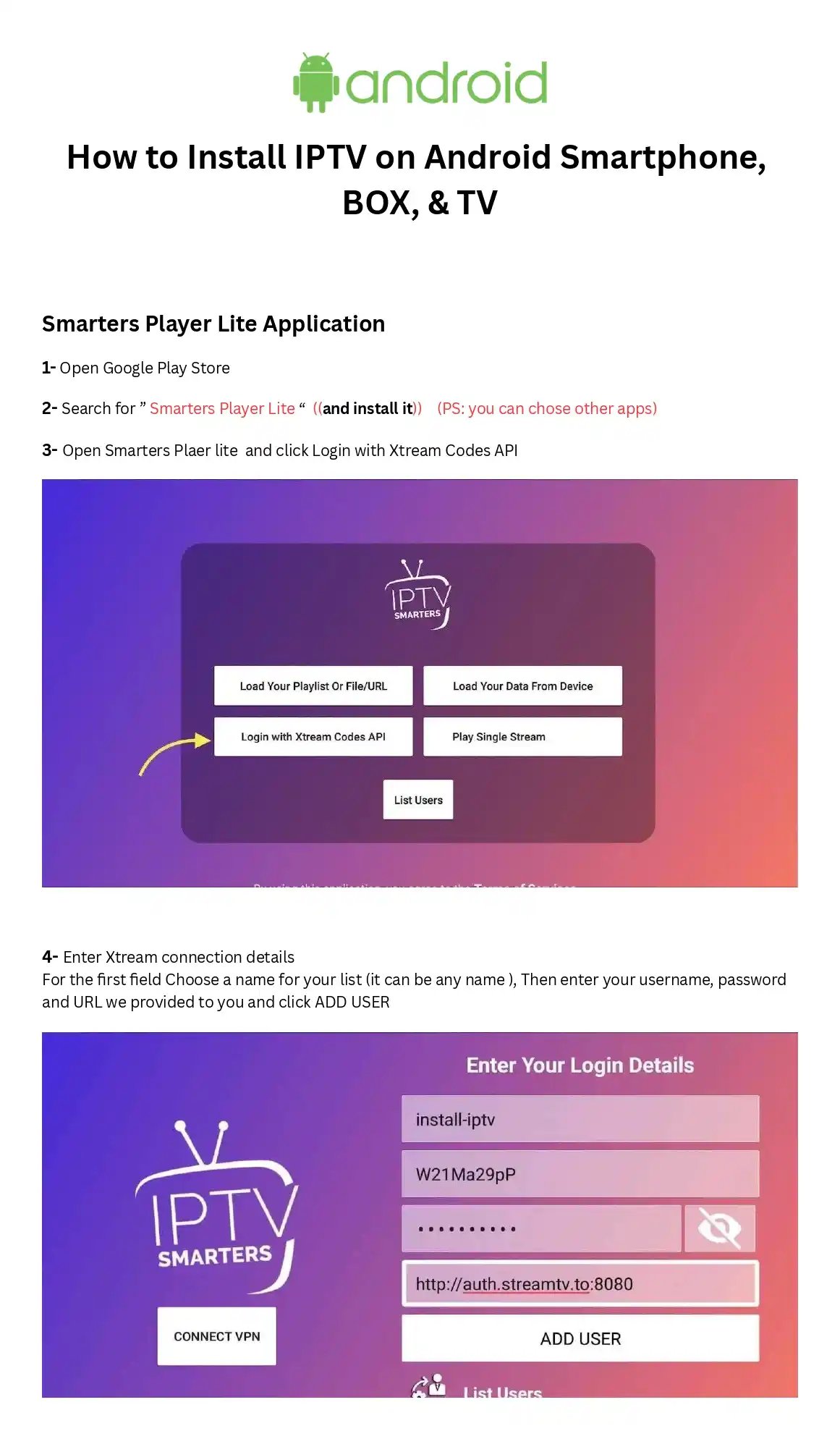
✅ Step 3: Login Using Xtream Codes API (Best Method)
When opening IPTV Smarters Pro:
Select Login with Xtream Codes API
Enter the details sent by Drogon TV:
Any Name: Drogon TV
Username: (Provided after purchase)
Password: (Provided after purchase)
Server URL: (Provided email link)
Click Add User
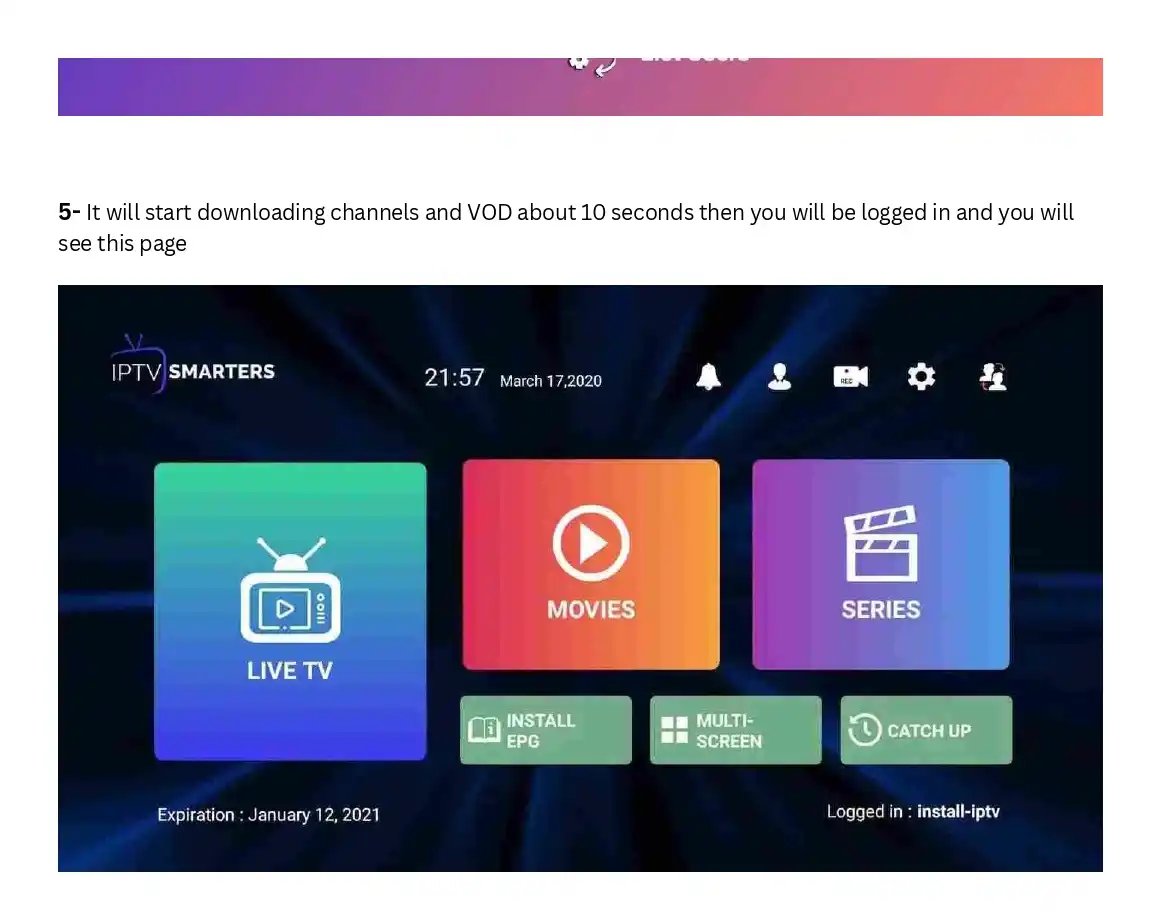
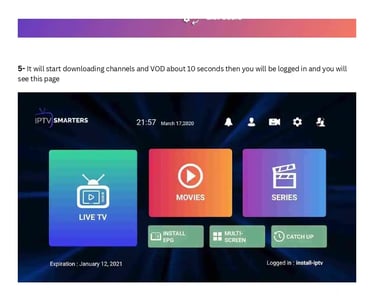
✅ Step 4: Load Channels & Content
The app will automatically:
Download Live TV channels
Load Movies & Series
Organize categories
This may take 10–30 seconds depending on internet speed.
✅ Step 5: Start Watching
You can now access:
📺 Live TV
🎬 Movies (VOD)
📡 Series
⭐ Favorites
Simply choose a category and press play.
🔥 Recommended Settings (Better Performance)
For smoother streaming on Android:
Go to Settings → Player Settings
Select Hardware Decoder
Enable Auto Frame Rate (if available)
Use stable Wi-Fi or Ethernet connection
✅ Why Drogon TV Works Best on Android
Fast channel loading
Compatible with IPTV Smarters & TiviMate
Works on phones, Android TV & TV boxes
Simple login (no complex setup)
Optimized streaming servers
🚀 Pro Tip (SEO + User Experience)
Most users searching how to install IPTV on Android or IPTV setup guide struggle because they choose unstable providers. Using a reliable service like Drogon TV ensures your IPTV player works correctly without buffering or missing channels.
👉 Get started now: https://drogontv.co/
Drogon TV (drogontv.co) is the official IPTV service with 20,000+ live channels, top sports like UFC, NFL, and Premier League, and 120,000+ movies and series in 4K Ultra HD—fully compatible with all devices including Firestick, Android, iOS, Smart TVs, and more.
Support
Connect
© 2026. All rights reserved.
Importent Links